
CompleteSMS for Gmail User Guide
To learn more about our CompleteSMS for Gmail add-on visit our website.
Before Installation
CompleteSMS for Gmail is an add-on that can be found in the Google Workspace Marketplace.
You will need a Gmail email account (@gmail.com) or Gmail business email account (@businessname.com) to access the add-on.
CompleteSMS Account Details
The add-on is free to download along with 25 free credits to send trial messages to yourself, but you will need to have a CompleteSMS account to be able to send messages to others.
If you already have a CompleteSMS account, and you are already a user (under the same gmail email account), the add-on will offer a Login button that will automatically find your account within CompleteSMS.
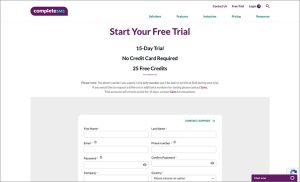
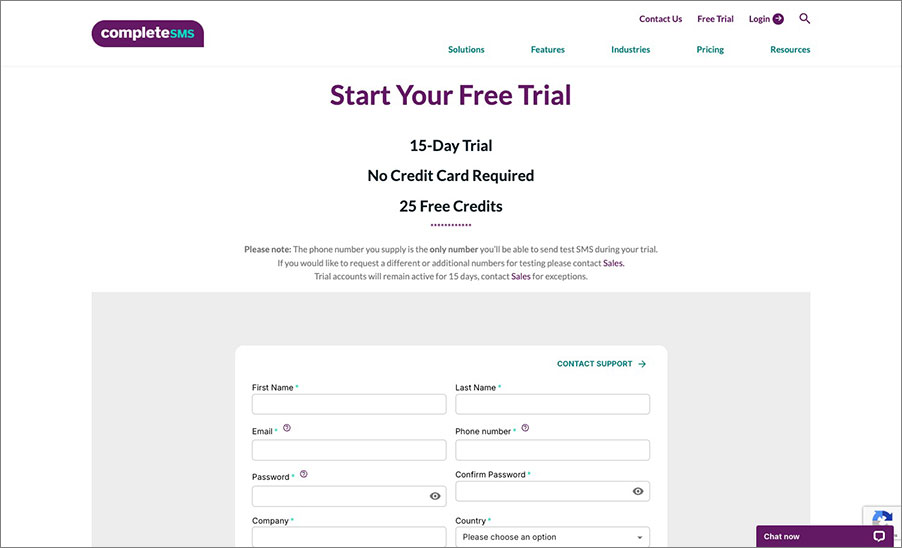
If you do not have a CompleteSMS account, you’ll be directed to create a free trial when you open the add-on. Or you can go to CompleteSMS.com and start your free trial from there.
Installation
- Log into your Gmail account within the Gmail application (if you use Outlook or another email client to send messages using your Gmail address, you have to be in the Gmail interface to be able to use this add-on).
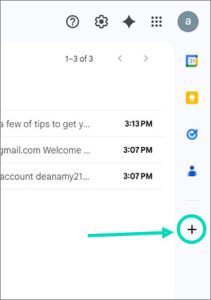
- Click on the plus symbol in the right hand application ribbon.

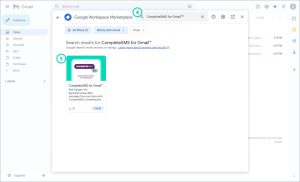
- This will open the Google Workspace Marketplace window.
- Using the search bar, look for CompleteSMS for Gmail.
- Select the add-on by clicking on the CompleteSMS for Gmail entry.

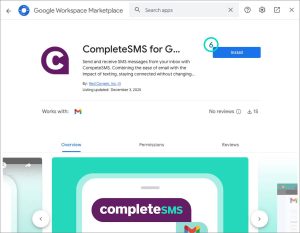
- Select the Individual Install button.

- If you are using an @gmail.com address you will only have an Install button (shown here).
- If you are using a business email you will have the admin or individual installation options.
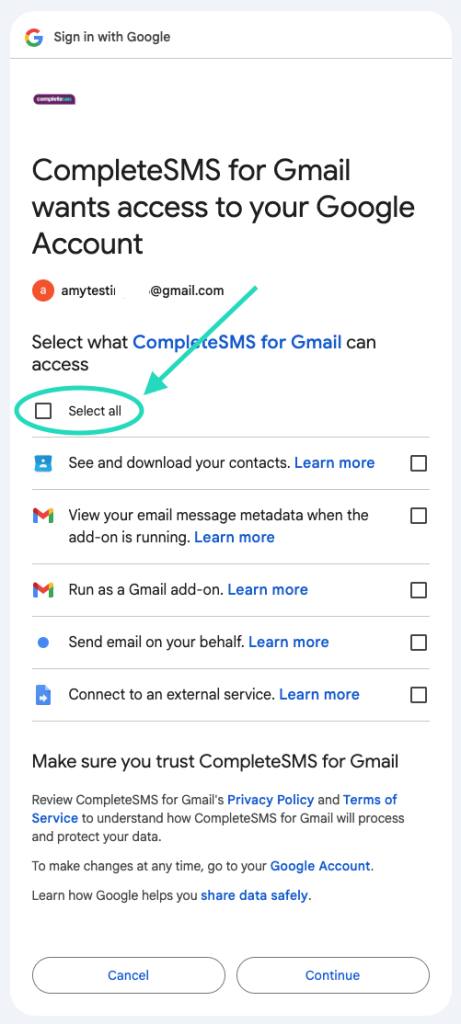
- Agree to the permissions modals that Gmail will serve up.
- Agree to the the permissions requests.
- Select the Gmail account you want to install the add-on.
- Agree to the additional permissions request.

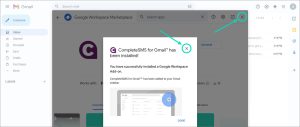
- The add-in will automatically install, then click Done.
- Close out the Marketplace window.

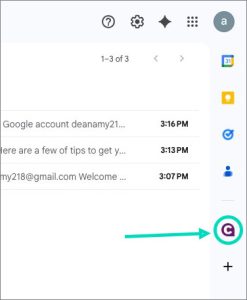
- Your add-in will appear in the right hand application ribbon (if it doesn’t appear immediately, you may need to refresh your Gmail inbox, or log out and log back in).
- Select the CompleteSMS icon.

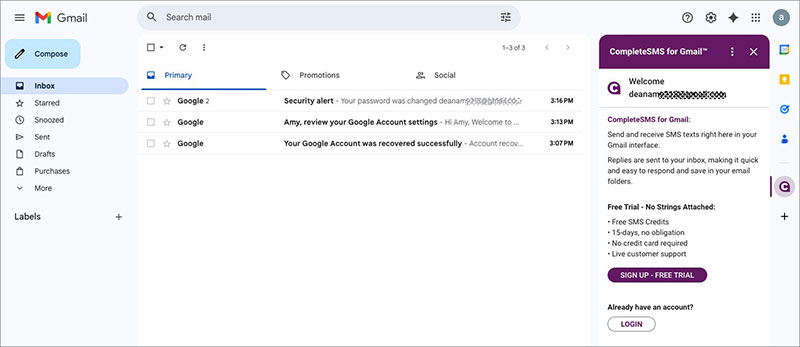
- The add-on will slide out from the right hand side of your inbox.

- If you already have a CompleteSMS account, you can immediately start sending messages, if you don’t have an account you’ll need to start a trial before sending messages.

Send an SMS
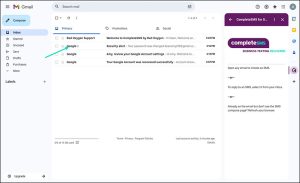
- To activate the Send feature, you’ll need to click on an email in your inbox. Doesn’t matter which one.

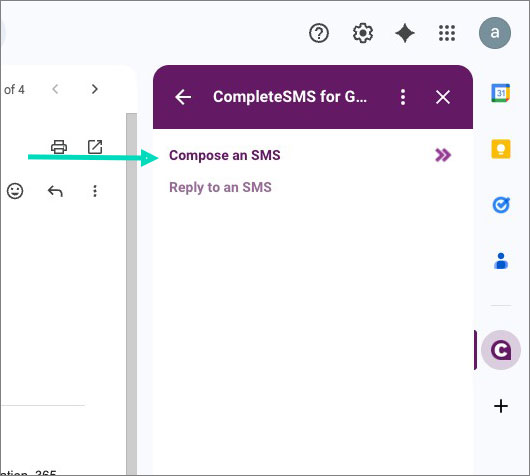
- Select Compose an SMS from the CompleteSMS panel.

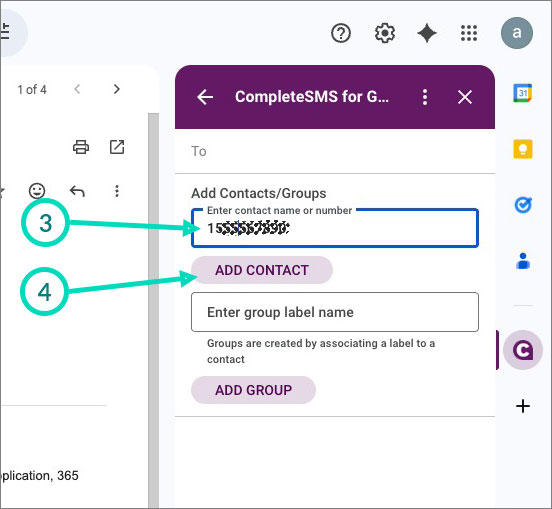
- Enter a phone number or start typing in a name of a contact or group stored in your Gmail contacts.
- Click Add Contact.

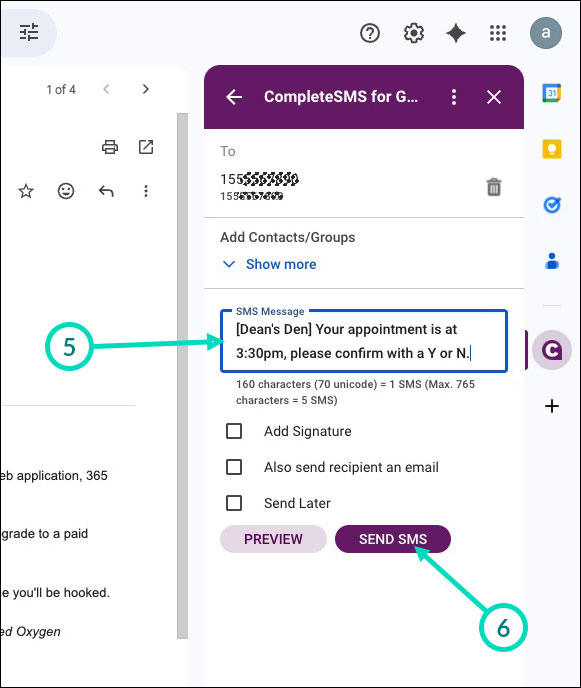
- Enter your message
- Click Send.

View Replies
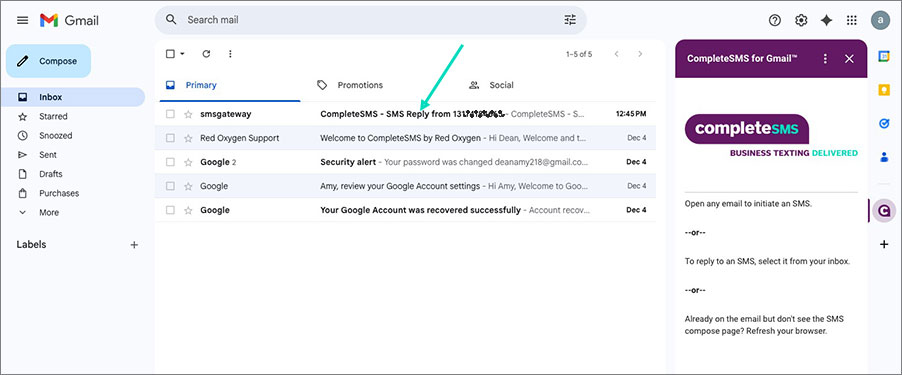
Replies will appear in your inbox, just as an email would.
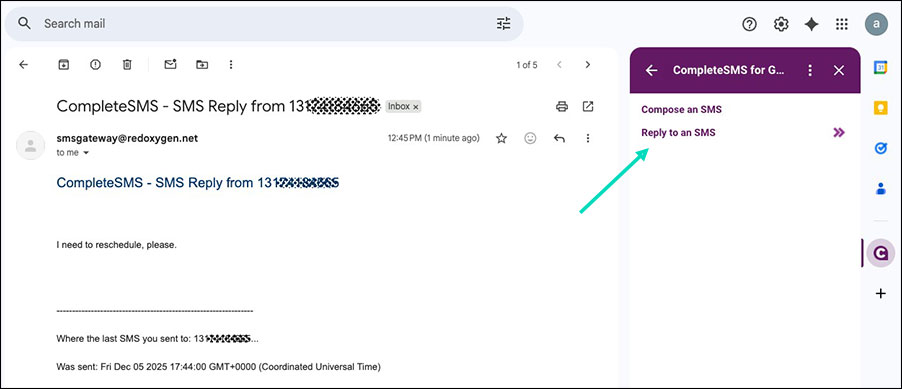
- Click on the email that has the reply.

- See the CompleteSMS panel allow for replies.
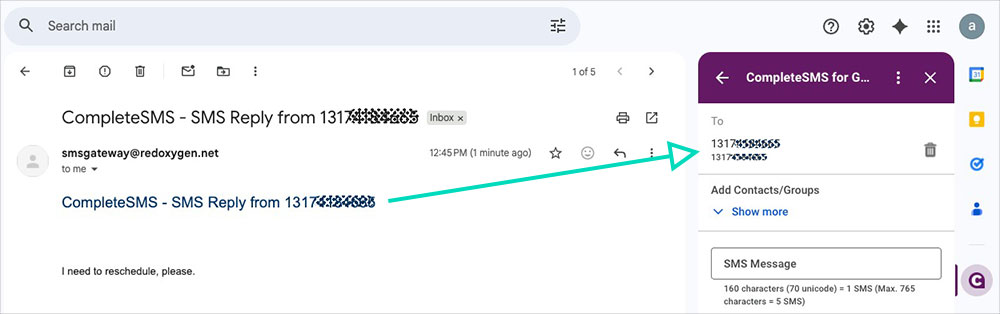
- Select Reply to an SMS.

- This automatically populates the number or contact that sent the response you selected.

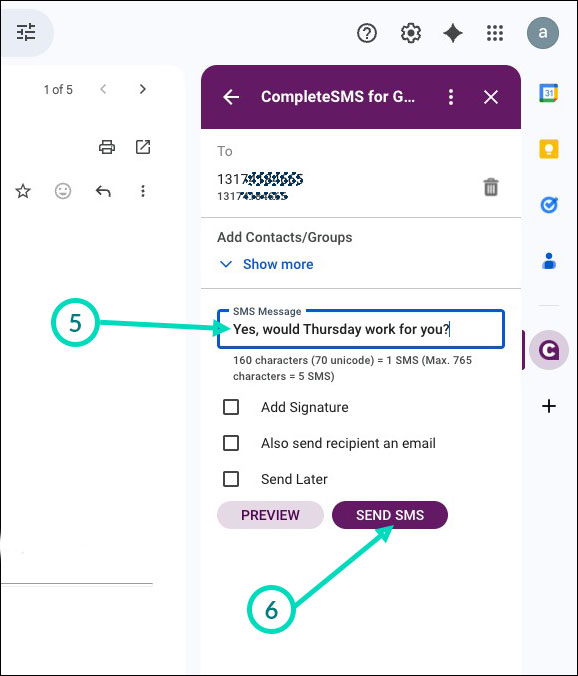
- Enter your response.
- Hit send.