
Say it louder with a picture, without leaving your email inbox.
The CompleteSMS MMS API for Email lets you send picture messages directly from your favorite email client.
- Send MMS alerts from system monitoring software, including screenshots or images that help your support team identify and resolve server issues.
- Send MMS messages from virtually any email client, regardless of vendor or operating system.
- Set up email forwarding rules to send important information to a mobile phone as an MMS message.
- Replies to your MMS messages are automatically delivered by email to the original sender’s email address.
Note: Prior to sending MMS, ensure that your email client is set to only send plain text. MIME encoded HTML messages may not be interpreted correctly.
Authentication
CompleteSMS can perform two different authentication checks:
- Email Address and IP Address.
- Email Address, Account ID and Password.
| Name | Description |
|---|---|
| Email Address | The ‘From’ email address is used to identify the person sending the message to CompleteSMS. It is always used in conjunction with another method of identifying the user such as IP address or Account ID and password. |
| IP Address | IP Address authentication examines the IP address of the computer that connects to the CompleteSMS email server. This is usually the external IP address configured on the firewall of the network that contains the SMTP relay or server that sends the email. This is intended to be used by organizations that run their own email server and have been assigned a static IP address. It is not intended to be used by organizations that have their email hosted by an ISP or hosting service. This is because the IP address of the SMTP server that sends the email to CompleteSMS could be used by many different companies. In that scenario all of these companies appear to have the same IP address and therefore can’t be used to uniquely identify your company. Contact Support for assistance in setting this up. |
| Account ID | The Account ID is a number that is assigned to your account when the account is created. It is the same for all users within a Company’s CompleteSMS account. |
| Password | The Password is unique to each user. Users authenticated by IP address are generally not required to supply an Account ID and Password. |
FORMAT 1 – (<mobileNo>@mail.completesms.net)
Format 1: Send to <MobileNo>@mail.completesms.net
To send an MMS using the Email API you must first setup your IP address or obtain an AccountId from CompleteSMS.
Email format specification
| Field | Description | Example |
|---|---|---|
| To | <Mobile Number>@mail.completesms.net | [email protected] |
| FROM | Email address replies are to be sent to. | [email protected] |
| SUBJECT | MMS: | MMS: |
| BODY | Message text and media file attachment | Server 23 is offline. + an attached file (do not drag and drop) |
“Subject” must always be MMS: with no additional words or characters.
If you are authenticated by IP address, then that is all you have to do.
If you are authenticated by authorization code then you must also put the following at the start of the body of your email.
BODY: [SENDER]
      ID=<Account ID>
      PW=<Password>
Example
Example 1 – Using IP authentication
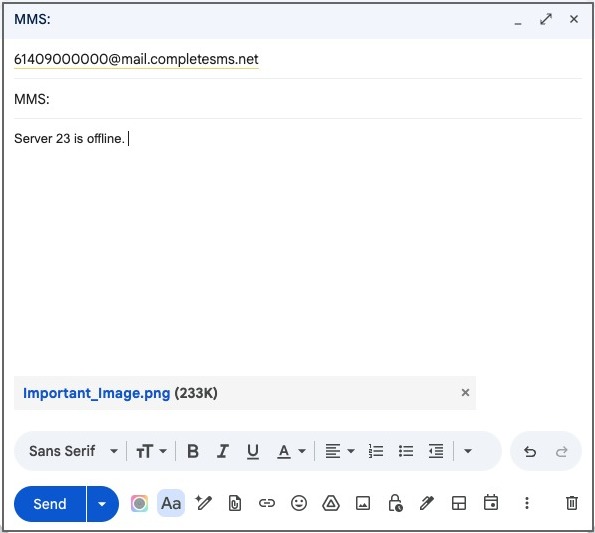
61409000000 will receive a MMS like:
System Alert Server 23 is offline.


Example 2 – Using password authentication
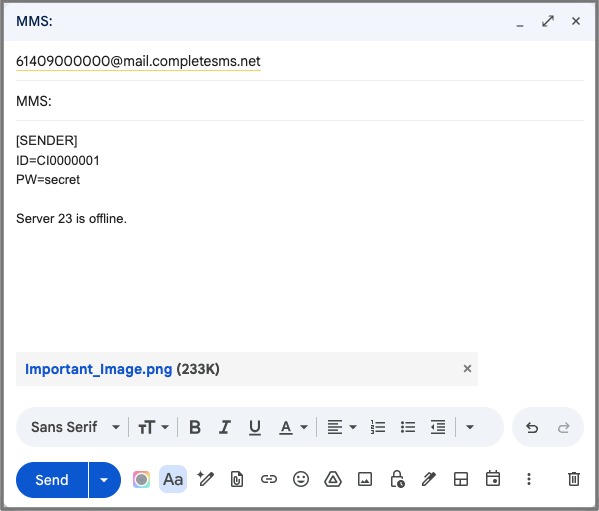
Note: Please make sure you leave the forth line blank.
61409000000 will receive a MMS like:
System Alert Server 23 is offline.
FORMAT 2 – ([email protected])
Format 2: Send to [email protected]
The second method is a little more difficult to use but is more suited to bulk message transmission. It allows MMS messages to be sent to many recipients from a single email.
Email format specification (with image attached)
| Field | Description | Example |
|---|---|---|
| To | smsgateway@mail.completesms.net | |
| FROM | Email address replies are to be sent to. | support@mail.completesms.net |
| SUBJECT | MMS: | |
| BODY | [SENDER] ID=<AccountID> PW=<Password>[1] Name=<Destination Name> Number=<Destination Mobile> Message=<Message Content>[2] Name=<Destination Name> Number=<Destination Mobile> Message=<Message Content>………………[50] Name=<Destination Name> Number=<Destination Mobile> Message=<Message Content> |
Example
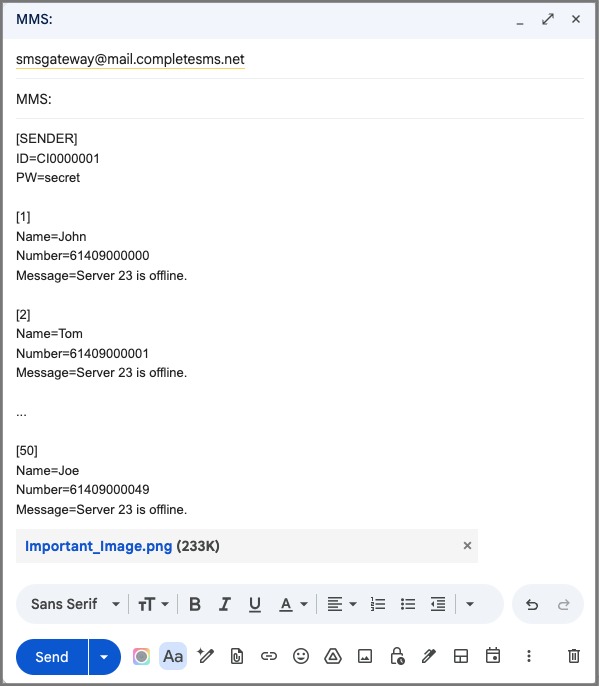
Format 3 – (Alternative to Format 2)
This format provides similar functionality to Format 2 but the different layout might be easier for customers migrating from another SMS service provider.
Format 3: Send to [email protected]
It allows MMS messages to be sent to many recipients from a single email.
Email format specification (with image attached)
| Field | Description | Example |
|---|---|---|
| To | [email protected] | |
| FROM | Email address replies are to be sent to. | [email protected] |
| SUBJECT | MMS: | |
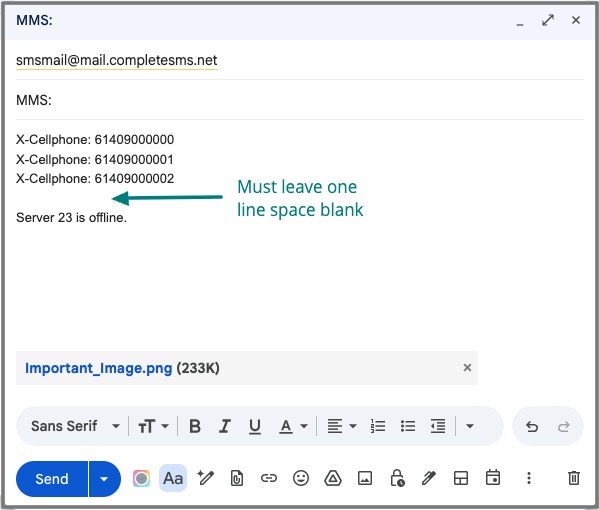
| BODY | X-Cellphone: 61409000000 X-Cellphone: 61419718927 X-Cellphone: 0419718972Message Content |
Format:
-
There must be no blank lines between cell phone numbers.
-
There must be exactly one blank line between the cell phone list and the message text.
Parameters:
-
X-Cellphone: The recipients mobile phone number. This is best written in full international format, eg: 61417999999 for Australian destinations. If expressed in domestic format, eg: 0417999999 then your country code in your account on the CompleteSMS server must be set to the appropriate country.
-
Message Text: The SMS message text must appear exactly one row below the list of cellphone recipients. The message text must be between 1 and 765 characters. Messages greater than 160 characters in length will be charged at the rate of one message / 153 characters sent. Long sms greater than 160 character will be concatenated together into one long SMS by most modern handsets.
Example
Format 4 – CSV Attachments for Bulk MMS
Another easy way to send multiple MMS messages is to put them into a .CSV file which can be easily generated.
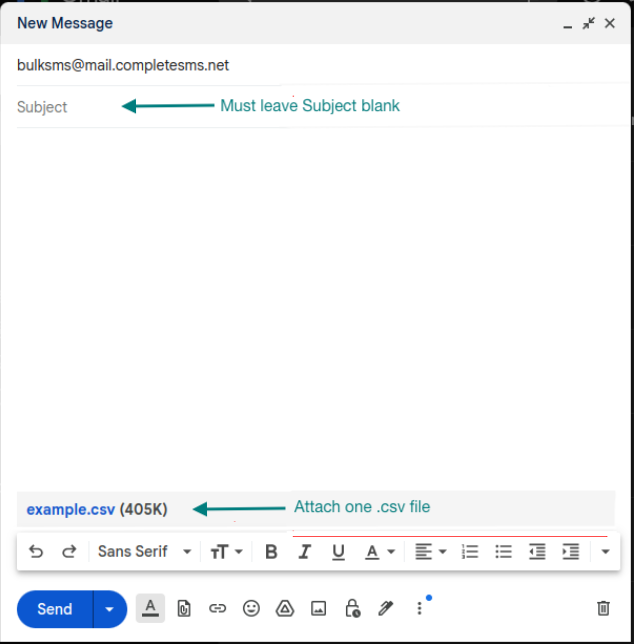
Format 4: Send to [email protected] (NOT http://redoxygen.com )
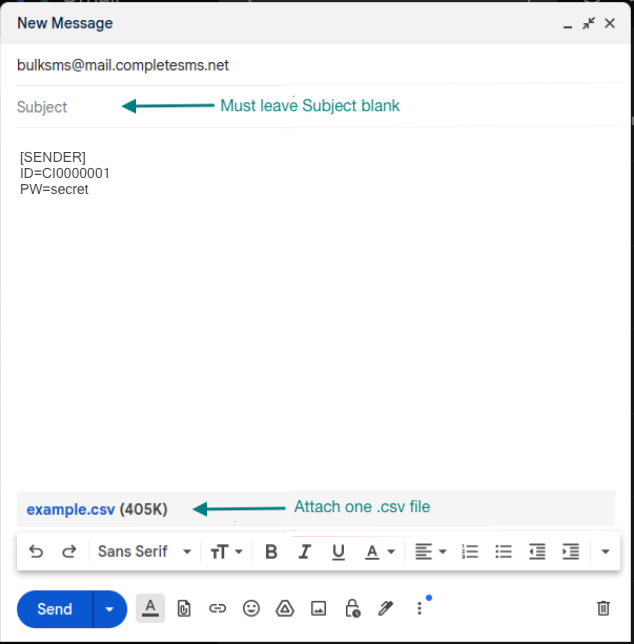
In the body your account details
BODY: [SENDER]
      ID=<Account ID>
      PW=<Password>
These details combined with the ‘FROM’ address of the email
For users that have authentication by IP address, the account details are optional.
The SMS messages must be contained in an attachment with a filename that has a .CSV extension.
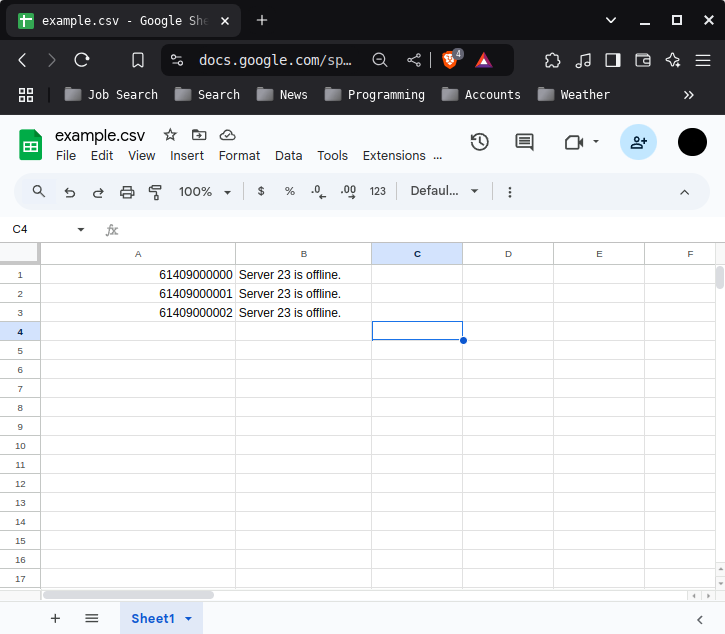
The .CSV file must be formatted exactly as follows.
-
One recipient per row
-
Message text must appear on each row
-
Recipient mobile number must be in column 1
-
Message text must be in column 2
To avoid any overlap on the file name, the .CSV file must be named exactly as follow: CI00#######yymmddhhmiss.csv. CI00####### is your account ID such as CI00123456. yymmddhhmiss is the date and time that you create the CSV file, such as 241223151959 (2024-Dec-23, 15:19:59). In this case, your CSV file will be CI00123456241223151959.csv
Example
Example 1 – Using IP authentication
Example 2 – Using password authentication
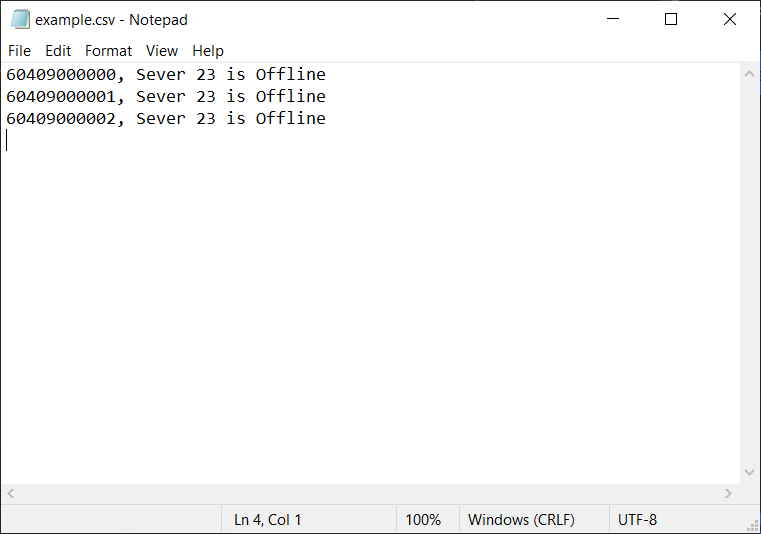
Example CSV file
Example 1 – .csv file
Example 2 – Notepad