
Features
Send as an Email
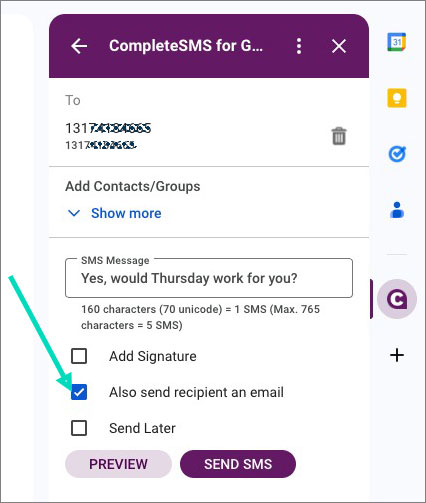
If you are sending to a contact from your Google contacts, and that contact has an email in their contact information you can send a copy of your SMS as an email to the recipient.
To do this check the box next to ‘Also send recipient an email’.
Schedule for Later
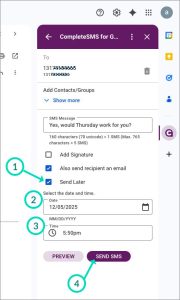
If you’d like to compose an SMS now, but send it for later, you can schedule that right in your CompleteSMS add-on panel.
- Check the box next to ‘Send Later’.
- Select a date.
- Select a time.
- Hit Send SMS.
The SMS will sit in your Scheduled box in the CompleteSMS web app and will send when the time comes.
If you’d like to cancel a previously scheduled SMS, go to the web app (app.completesms.com), select your Scheduled tab, look for the future date, and cancel by checking the box for the SMS and clicking ‘Cancel Pending Messages’.
This first time you send a message you will be prompted to set your timezone if you haven’t already.
Settings
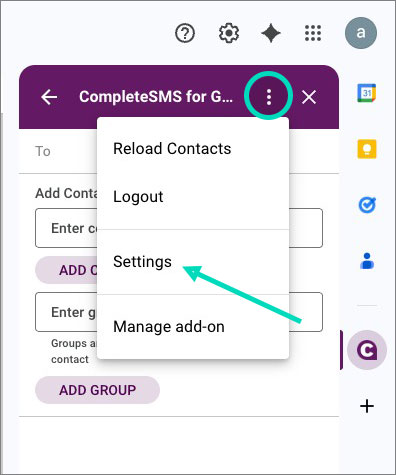
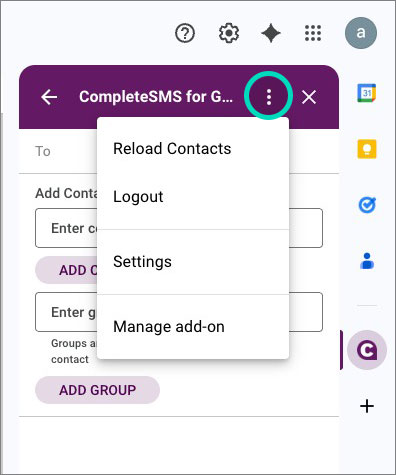 Go to the 3-dot icon in the purple header of the CompleteSMS panel.
Select Settings.
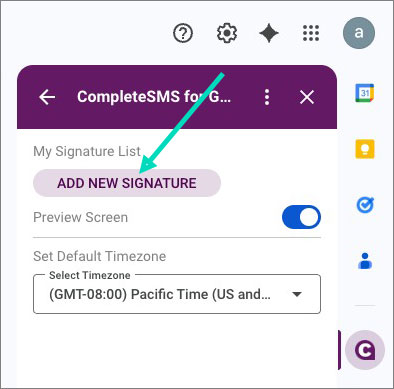
Here you can:
- Add, delete or edit signatures.
- You can make the Preview option available or not on the send screen. (the button next to the Send button)
- Default is On, you only change the toggle if you want to turn it off.
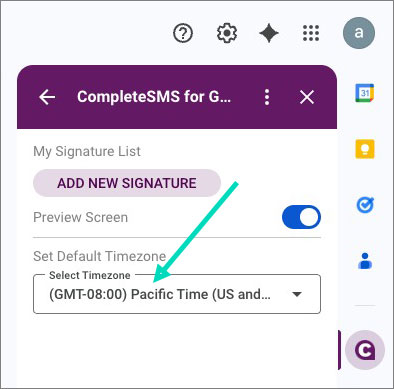
- And change your timezone. You will be asked to do this the first time you schedule a text, if you haven’t already.
Add Signature
You can create a signature or message template that you can easily select without having to type it in every time by:
First you need to create a signature:
- Go to the three dot icon in the purple header of the CompleteSMS panel.
- Select Settings.

- Click the ‘Add New Signature’ button.

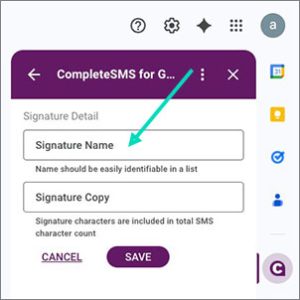
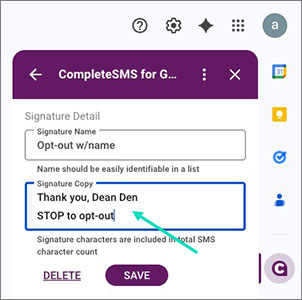
- Give your signature/template a name that will be easily identifiable in a list.

- Add the text for your signature/template.
- Hit Save.

- Click the back arrow in the purple header.
- Now you can add that signature to your SMS.
Reminder: you can add as many signatures as you’d like.- Check the box next to ‘Add Signature’.
- Select the signature you’d like to use from the dropdown list.
- Hit send

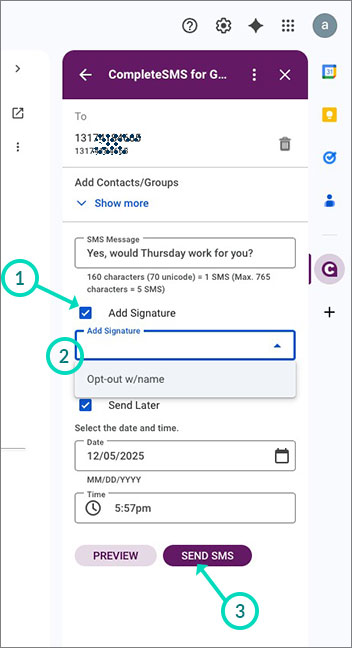
Reminder: the characters in the signature are added to the character count of the SMS.
Preview SMS
If you’d like to see the SMS you’ve composed before sending.
Click the Preview button.

Here you’ll see the SMS including any signature you’ve chosen to use.
Then you can hit send from this screen and it will send the full message to the recipient(s).
Timezone
Your timezone set correctly helps to make sure any scheduled SMS get delivered at the correct time. In most cases your timezone will default to the timezone on your system, if for some reason it has not, you can manually change it here.