

Summary
Quick Overview
Text messages get read in 3 minutes, whereas emails sit unread for hours. The CompleteSMS Outlook add-in lets you send and receive SMS directly from your inbox without switching apps or using your personal phone. It works across Classic Outlook, Microsoft 365, Outlook Web, and mobile, making it easy to reach clients, employees, and prospects when you need an immediate response. All messages stay in your Outlook record for compliance and continuity, even when team members change roles.
You spend your workday in Outlook. Email handles most communication just fine—until you need an answer now. That client confirmation for tomorrow’s meeting? The shift change notice for your team? Email sits unread for hours. Texts get read typicaly within 3 mins.
You can send SMS from Outlook without leaving your inbox. The CompleteSMS Outlook add-in lets you send text messages the same way you email—compose, send, receive replies, all from the inbox you’re already working in. No app switching, no personal phone numbers mixing with business communication or data walking out the door when someone changes jobs.
It works with Classic Outlook 2016-2021, New Outlook, Microsoft 365, Outlook Web, and the Outlook mobile app on iOS and Android. One install, and you’re set. The old workaround of routing texts through carrier email gateways? AT&T shut down its email-to-text gateway in June 2025, and other carriers are following suit. A dedicated add-in or our Email API are reliable paths forward.
How to Install the CompleteSMS Outlook Add-In
Installing the add-in is speedy, whether through your email or using the Outlook Admin settings, and while a CompleteSMS account is required before installation (free trial available, credits included), no developer is needed. This Microsoft 365 SMS integration handles the setup for you through the CompleteSMS Outlook add-in.
New Outlook and Microsoft 365 via Microsoft AppSource
If you want to know how to send SMS from Outlook 365, the answer is Microsoft AppSource. To install via AppSource:
- Open Outlook and navigate to Get Add-ins (sometimes labeled as the AppSource icon in your toolbar)
- Search for “CompleteSMS” in the add-in marketplace
- Click Add to install
- The add-in appears in your Outlook ribbon and inbox sidebar
Once installed via AppSource, this Outlook SMS for enterprise solution automatically works on the Outlook mobile app—no separate installation needed on your phone. Enterprise admins can also push the add-in to all users in their organization via centralized deployment. This makes it easy to roll out across teams without individual setup.
For step-by-step screenshots and detailed setup instructions, see the full installation and user guide.
How to Send Text Messages From Outlook
Once installed, sending a text from Outlook is quick and familiar—you are already in the right place. Whether you’re sending SMS via Outlook for one contact or many, the process is straightforward.
Composing and Sending Your First Text
Open any email in your inbox, then follow these steps:
- Open an existing email and click the CompleteSMS icon in the Outlook toolbar or sidebar
- Select “Send SMS”
- The SMS compose window opens
- Type your message
- Hit “Send”
A character counter appears in the compose window so you can track message length in real time. Messages over 160 characters may split into multiple parts, so keeping your message under 160 means a clean single-part SMS. Delivery confirmation appears in Outlook once sent, and outgoing messages are stored in your Sent Items folder for full record-keeping.
Adding Recipients from Your Outlook Contacts
Your Outlook address book contacts appear automatically in the compose window—select from the list or type a phone number manually in 10-digit U.S. format. Don’t have the contact saved yet? Type the number into the recipient field and send anyway. If you need to send mass text messages from Outlook, you can select multiple contacts at once.
Scheduling Messages and Using Templates
Two features make repetitive outreach faster:
- Scheduled sends: Compose a message and choose a future send date and time. The message sends at the chosen time, even if Outlook is closed—useful for reaching contacts at the right moment without having to remember to come back later. Note: each reminder must be scheduled individually.
- Message templates: Stored SMS templates are selectable from a drop-down in the compose window, saving time on repetitive outreach like appointment confirmations or follow-ups. Templates support personalization, like inserting a recipient’s name, to keep messages from feeling generic.
Example template with signature:
“Hi [Name], your appointment is confirmed for Tuesday at 2 p.m. Reply with any questions. —Jordan at Summit Dental”
Just fill in the name and you’re set.
The scheduled text message feature takes the mental load out of timing outreach, and templates mean you’re not drafting the same follow-up from scratch each time.
Receiving and Responding to SMS Replies in Outlook
Incoming SMS replies arrive in your Outlook inbox as emails, landing right alongside your regular messages—no app switching required.
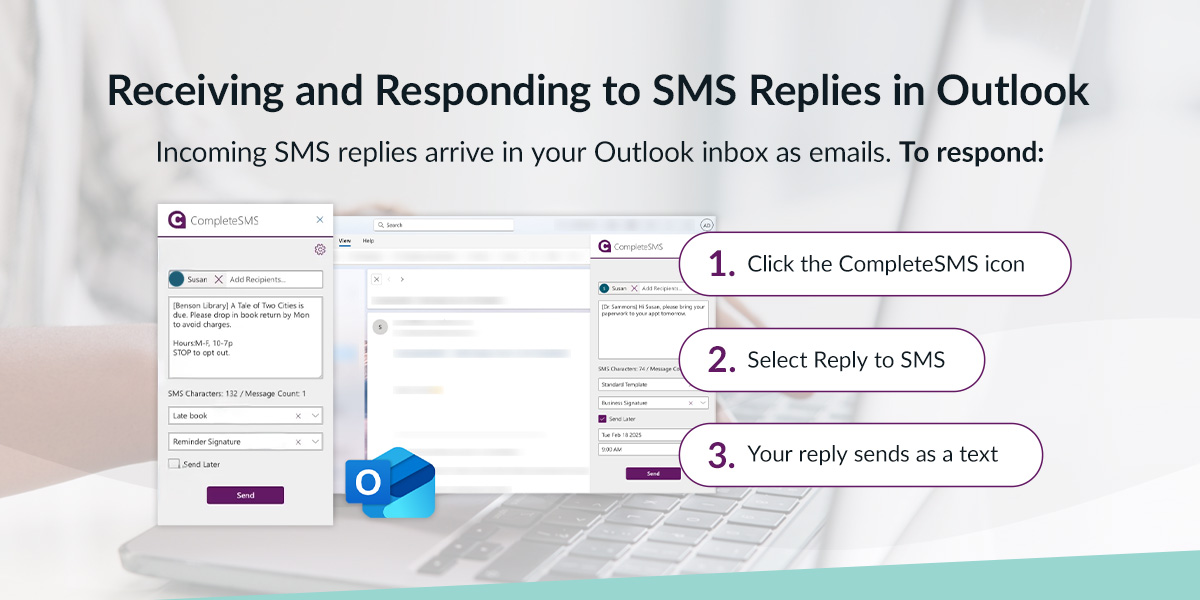
To respond:
- Click the CompleteSMS icon
- Select Reply to SMS
- Your reply sends as a text to the original sender
The CompleteSMS add-in supports message threading, keeping the full conversation history organized. All sent and received messages are archived in your inbox and sent items, which also supports SMS compliance requirements for businesses that need documented communication records.
More Features Worth Knowing
Additional capabilities streamline your workflow:
- Signatures: Set a default once, and it appears automatically on every outgoing message, or select a different stored signature for each email.
- Character count: The compose window shows a real-time count as you type—stay under 160 characters for a single SMS.
- Dedicated business number: Messages send from your business number, not your personal cell.
- Mobile: Once installed via AppSource, the add-in works automatically in the Outlook app on iOS and Android.
For the full CompleteSMS feature list, including 10DLC registration and distribution lists, explore the platform documentation.
Business Use Cases for Outlook SMS
This Microsoft 365 business SMS solution shines in operational communication with existing contacts. Business communication Outlook SMS works particularly well for these teams:
- Sales teams: Quick text follow-up after an email introduction when a prospect goes quiet.
- HR: Communicating with candidates or employees about scheduling, onboarding updates or shift changes.
- Operations: Urgent alerts or time-sensitive notifications to staff.
- Executive assistants: Confirming meeting details with attendees when email response times aren’t cutting it.
- Account managers: Checking in with clients via their preferred channel without pulling out a personal phone.
All of this happens without anyone on the team needing to use a personal phone. Every sent and received message stays in the Outlook record—if an employee leaves, the business retains the full communication history. This is particularly important for teams that need to maintain records for U.S. SMS compliance.
Troubleshooting Common Issues
Running into a snag? Five common issues and quick fixes:
- Add-in not appearing after installation: Try refreshing Outlook or fully closing and reopening the app.
- Phone numbers not pulling from contacts: Numbers must be saved in 10-digit format in your Outlook address book.
- Messages not sending: Check your credit balance in your CompleteSMS account and verify the recipient number isn’t on a block list.
- Permissions error in enterprise: The installation may require IT admin approval if your organization has restricted add-in installations.
For additional help, visit the CompleteSMS FAQ page or reach out to support directly.
Take Your Business Texting Further With CompleteSMS
The CompleteSMS add-in is just one way Outlook workflow text messaging works. The platform includes:
- A Gmail add-on
- A web portal for sending SMS from email platforms or texting from any browser
- Email API format directly in whatever email client you use
- Bulk SMS for larger contact lists
- An SMS API for teams who want to connect SMS to their existing software stack
The platform also manages your 10DLC registration to keep your messages carrier-compliant. With major carriers moving away from email-to-text gateways, a dedicated solution like CompleteSMS is the reliable path forward for business texting in 2025 and beyond.
Get Started With CompleteSMS Today
Schedule a demo to see how the CompleteSMS Outlook add-in fits into your workflow. Not sure yet? Start with a free 15-day trial—no credit card required, trial credits included.
Explore CompleteSMS pricing plans to see what fits your team, or grab the installation guide and get set up in minutes. Seamless Outlook business texting workflow from the inbox you’re already in. No new apps, no workflow disruption—just faster communication that actually gets read.