
Summary
Quick Overview
SMS messages get a 98% open rate compared to email's 34%, but switching between apps costs workers nearly four hours per week in lost productivity. The CompleteSMS Gmail add-on lets you send and receive text messages directly from your inbox using a dedicated business number, no app switching or personal phone required. Threaded replies keep conversations organized, while features like templates, scheduling, and delivery tracking streamline everything from appointment reminders to sales follow-ups. The add-on works across desktop and mobile Gmail, turning your inbox into a complete communication hub without changing your workflow.
Email is reliable. But when you need someone to actually read your message—and read it fast—a text wins every time. SMS messages are opened 98% of the time because texts are a trusted, convenient form of communication. Email’s global unique open rate is 34.2%.
The problem isn’t that you need to text more. It’s that switching to a separate app to do it is costing you more than you think. Workers toggle between applications roughly 1,200 times per day and spend nearly four hours per week just reorienting themselves after each switch. That’s real time lost—and texting from a separate platform is exactly the kind of context switch that adds up.
If you’re already spending your day in Gmail, you don’t have to keep leaving it. Here’s how to send text messages from Gmail, right alongside your emails, using the CompleteSMS Gmail add-on.
Prerequisites and Setup Requirements
Getting started with Gmail SMS integration doesn’t need a developer or IT support. You need three things:
- Gmail account: Free or Google Workspace—both work perfectly.
- CompleteSMS account: When you send texts from Gmail, recipients see your dedicated business number—not your personal cell—and if they call it back, you control where that call gets routed.
- Five minutes: That’s roughly how long setup takes.
You can access the add-on from any desktop browser or the Gmail mobile app. No technical skills needed.
Step-by-Step Installation Guide
Here’s how to add text messaging to Gmail in three easy steps:
- Step 1: Find the CompleteSMS for Gmail add-on in the Google Workspace Marketplace—you can search “CompleteSMS” or navigate directly from the product page. Important note: you’ll find this in the Google Workspace Marketplace as an official add-on. It integrates directly with Gmail’s interface and works across all your devices—desktop, mobile, wherever you check email.
- Step 2: During installation, Gmail will ask for permissions. You’ll see requests for contact access (so the add-on can pull phone numbers from your contacts) and the ability to send on your behalf (so texts actually go out). These permissions are standard for any Gmail text message add-on.
- Step 3: Link your CompleteSMS account to Gmail by logging in when prompted. The system verifies your credentials and connects the two platforms. Once you see the CompleteSMS sidebar appear in your Gmail interface, you’re set.
If something goes wrong—maybe the sidebar doesn’t appear, or authentication fails—check the full installation guide for troubleshooting steps.
How to Send Text Messages From Gmail
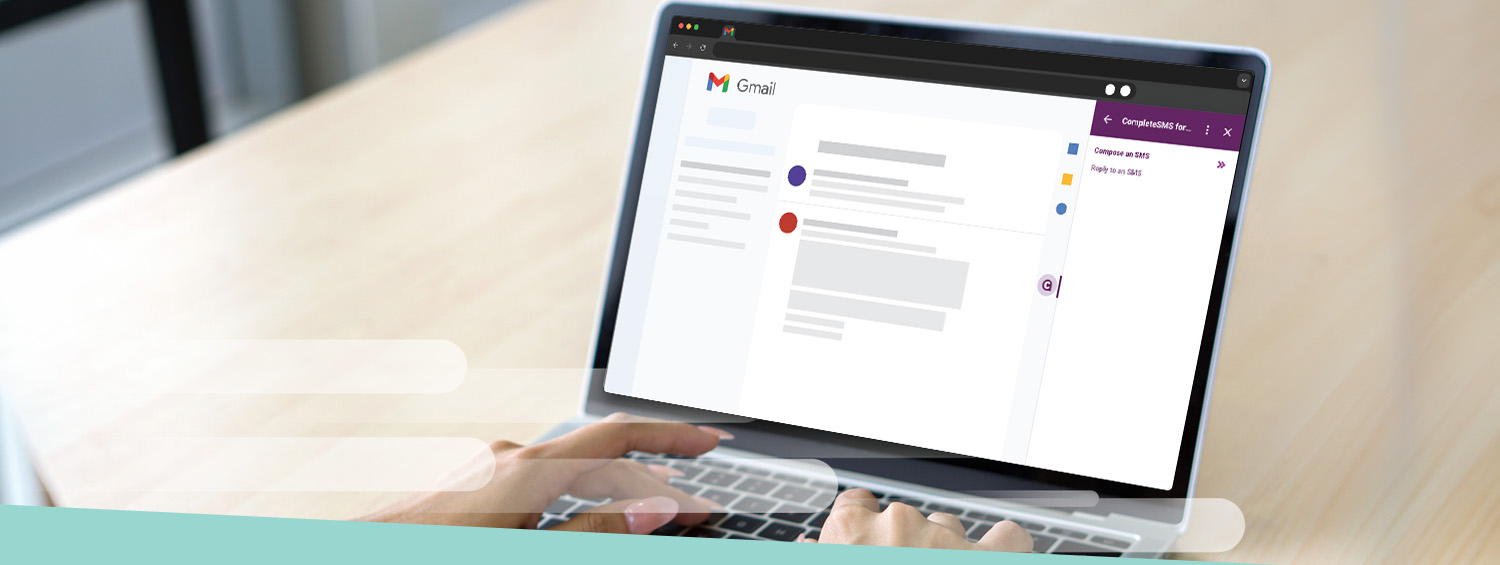
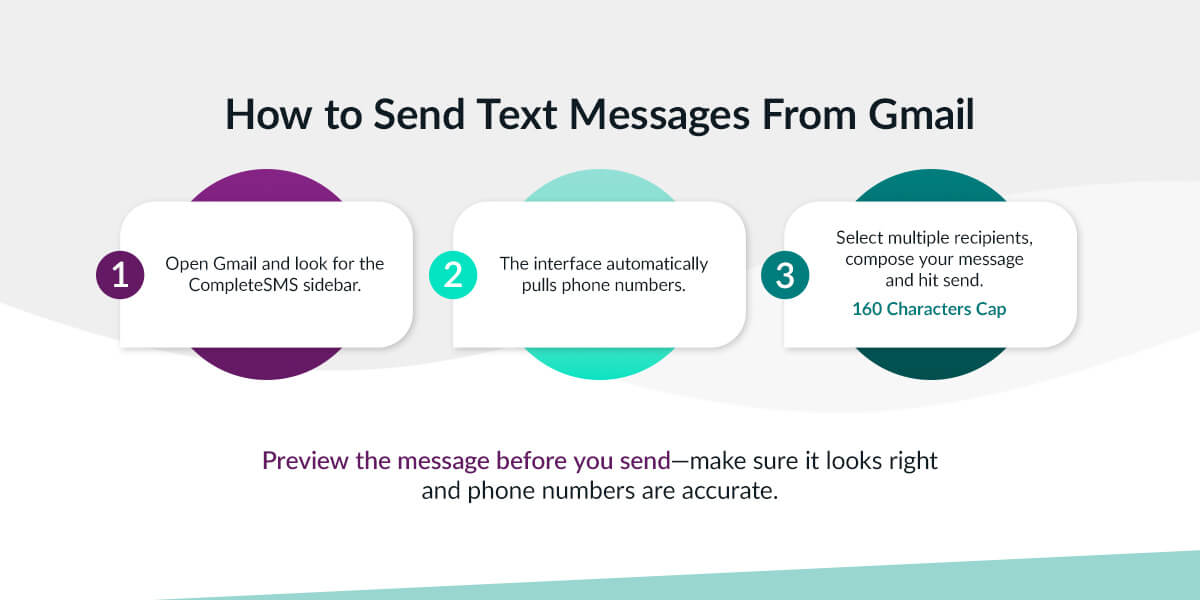
Open Gmail and look for the CompleteSMS sidebar, usually on the right side of your screen. Compose a new SMS.
The interface automatically pulls phone numbers from your Gmail contacts. Start typing a name and matching contacts appear, then select your recipient—or if you don’t have them saved yet, type the phone number directly.
Standard SMS caps out at 160 characters—short and direct. If you go over, your message splits into multiple parts that might arrive out of order or feel disjointed to the recipient, so keep it tight.
Sending to multiple people works the same way. Select multiple recipients, compose your message and hit send. Each person receives it as an individual text. To send bulk SMS from Gmail, you’ll want the dedicated bulk SMS features in the full platform.
Preview the message before you send—make sure it looks right and phone numbers are accurate. Then send. You’ll get confirmation that the message went out. Want to confirm delivery? The CompleteSMS web app shows you whether your messages were received—and flags anything that failed so you can follow up another way.
Advanced Features and Capabilities
Business texting from Gmail goes beyond basic sending. Here’s what you can do:
- Threaded replies: Responses come back to your Gmail inbox, threaded like an email conversation. You can send and reply to SMS without switching platforms—the whole conversation stays visible in one thread.
- Templates: Save time with prewritten messages for appointment reminders, follow-ups or confirmations. Create an SMS template, then load it, personalize if needed and send.
- Scheduling: Compose your text now and set it to send later—maybe first thing tomorrow morning or right before an event. You’ll need to schedule each message individually, so if you’re sending multiple reminders over time, plan to set up each one separately.
- Delivery tracking: See whether your message reached its destination or failed due to bad numbers, carrier issues or opt-outs. The system flags failed deliveries, so you can follow up another way.
Best Practices for Text Messaging Through Gmail
These are the key guidelines for effective business texting:
- Text for urgency, email for detail: SMS gets attention when you need someone to see it now—appointment reminders, shipping updates, quick confirmations. Email handles detailed explanations or formal communications.
- Keep it under 160 characters: Shorter Gmail-to-SMS texts feel more natural and land better with recipients.
- Only text opted-in contacts: This is required for 10DLC registration requirements and SMS compliance. Follow CTIA and ACMA spam guidelines and send business communication to people who expect to hear from you.
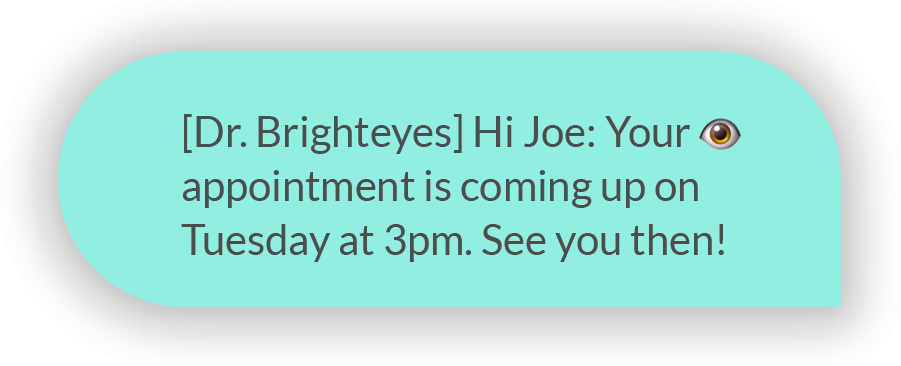
- Sign your texts: Add who you are: “Your appointment is confirmed for Tuesday at 2 p.m. —Sarah at Apex Dental.” Recipients need context, especially if they’re hearing from a business number they don’t have saved.
- Respond quickly: Response times matter for two-way SMS conversations. If someone replies to your text, get back to them quickly—texts feel immediate, and people expect faster responses than they do for email.
Use Case Examples
Here’s what sending SMS from Gmail looks like in action across different roles and industries:
- Sales follow-up: A rep just sent a quote via email. Instead of hoping the prospect checks their inbox, he immediately texts: “Just sent over the Q3 proposal. Let me know if you have questions—happy to walk through it. —Marcus”
- Shipping updates: Customer service receives a tracking update in their system. Without leaving the support email thread, they shoot off a quick text: “Your order shipped this morning. Track it here: [link]. Expect delivery Thursday. —Jenna, Support”
- Interview reminders: A recruiter wants to make sure the candidate shows up prepared. While reviewing resumes in Gmail, he sends: “Quick reminder: interview tomorrow at 10 a.m. with the product team. We’re at 450 Market St, 3rd floor. —Taylor, Hiring”
- Real estate coordination: The agent needs to lock in a showing time: “The seller confirmed 3 p.m. Saturday for the Elm Street property. Still work for you? —Chris, Apex Realty”
- Healthcare confirmations: Scheduling sends appointment reminders: “Appointment confirmed: Wednesday, March 15 at 9:30 a.m. with Dr. Lopez. Reply C to confirm or call to reschedule. —River City Health”
Pricing and Account Information
CompleteSMS operates on a credit-based model. You’re not paying a flat subscription fee—you purchase SMS credits, and the platform is included with those credits. Each text you send uses one credit, or more for longer messages that split into multiple parts.
The Gmail SMS add-on for business is available across all CompleteSMS plans. Your credit balance determines how many messages you’re sending, not which features you can access.
New users can start with a free trial—25 credits to test the system and see how it fits your workflow. Once you’ve seen it work, you can purchase additional credits based on your sending volume. Users and contacts are unlimited for all plans. Small teams might send a few dozen texts per day, while larger operations with customer service teams or field staff might send thousands. CompleteSMS handles both.
For detailed pricing and credit packages, see the CompleteSMS pricing page.
Get Started With CompleteSMS
You’ve seen how sending SMS from Gmail works—installation takes minutes, sending your first text is straightforward, and the advanced features handle everything from replies to scheduling. The real payoff? Time saved. Messages read. Customers who actually respond.
CompleteSMS for Gmail turns your inbox into a complete communication hub. Confirming appointments, following up on quotes, coordinating with your team—everything stays in one place.
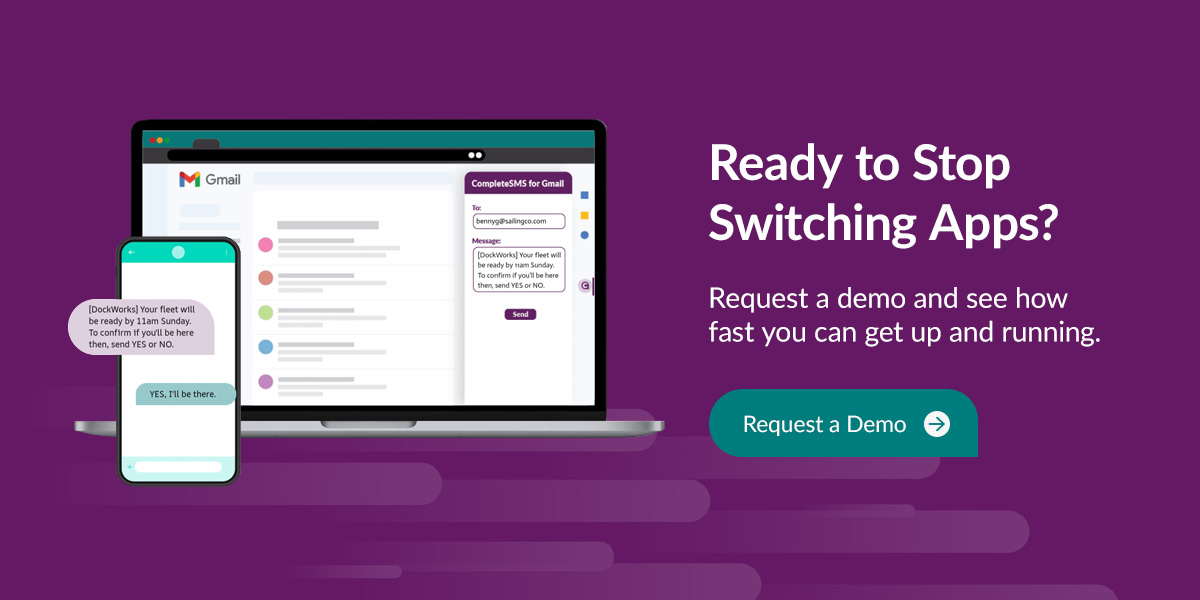
Ready to stop switching apps? Request a demo and see how fast you can get up and running. Or explore our video tutorials to see it in action. For deeper dives, check out our two-way SMS guide or browse CRM integration options to connect your existing tools.